
Settings
The Share My Cart settings control how the plugin behaves on the cart page and how sharing works for your customers.
Where to find the settings:
WooCommerce → Settings → Share My Cart
Or WooCommerce → Settings → Togethernet Suite → Share My Cart (if you have multiple Togethernet Suite extensions active).
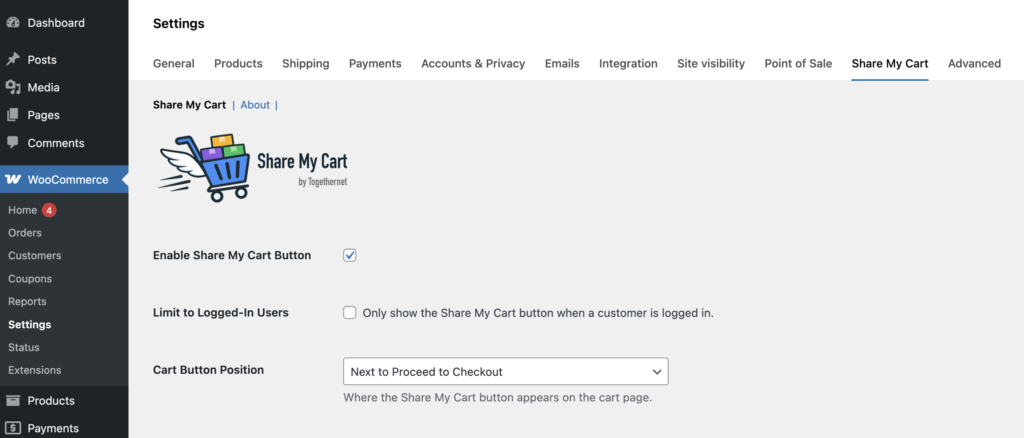
This opens the main settings area for the plugin. The settings are logically grouped into sections.
General
- Enable Share My Cart Button: show or hide the Share button on the cart page.
- Limit to Logged-In Users: by default, the Share button is visible to all visitors including guests. Enable this setting to restrict sharing to customers who are signed in. Useful for trade or B2B stores where sharing is intended for account holders only.
- Cart Button Position: choose where the Share button appears on the cart page. Two positions are available: Next to Proceed to Checkout (recommended for most themes) and After Entire Cart. The position applies to both the classic WooCommerce cart and the block-based cart.
Icon
- Icon: select a share icon from the visual picker. All images in the plugin’s ‘assets/icons/’ folder are shown here automatically.
- Button Style: choose between a text button or an icon-only control. Button displays a labelled button that inherits your theme’s button styling. Icon displays only the selected icon image with no visible label — an accessible ARIA label is added automatically for screen readers.
- Button Label: the text shown on the button when Button Style is set to Button. Leave blank to use the default “Share My Cart”. This setting has no effect when Button Style is set to Icon.
- Custom Icon: add your own icon if you prefer it to any of the available options. The recommended height is 64px; accepted file formats include .png, .jpg and .svg. To revert to one of the default icons, clear this field, select a default icon and save the settings.
Sharing Options
Choose which sharing methods appear in the Share My Cart modal. Each channel can be enabled or disabled independently, allowing you to offer only the ones that suit your customers.
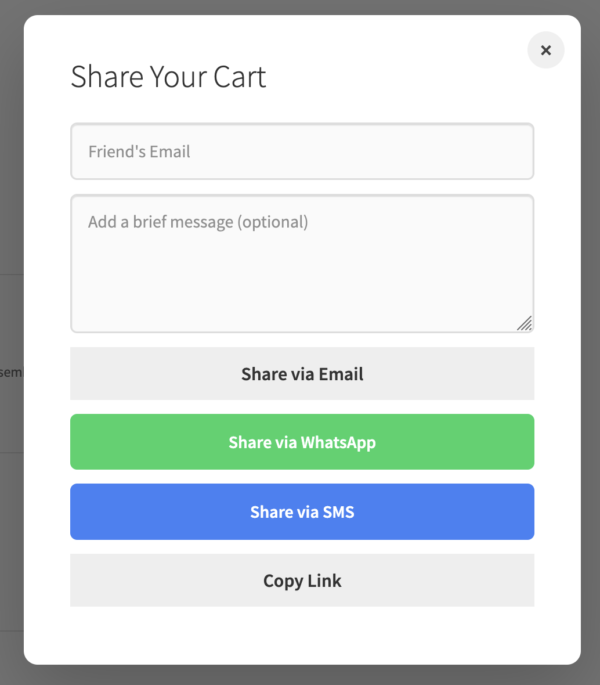
- Share via Email: shows a form in the modal where the customer enters a recipient email address and an optional personal message. The email is sent by your store.
- Share via WhatsApp: adds a WhatsApp button to the modal. Clicking it opens WhatsApp with a pre-composed message containing the cart link, on both desktop and mobile.
- Share via SMS: adds an SMS button to the modal. Clicking it opens the device’s default messaging app with the cart link ready to send. Works best on mobile — on desktop, behaviour depends on whether a messaging app is configured.
- Copy Link: adds a Copy Link button to the modal. Clicking it copies the cart URL to the clipboard. The button label updates to confirm the copy was successful.
Email Settings
These settings apply when Share via Email is enabled.
- Email Sender Address: the address that appears in the From field of sharing emails. Use an address at your own domain for best deliverability. If left blank or invalid, the plugin falls back to ‘noreply@yourdomain.com’.
- Email Body: the opening paragraph of the sharing email. The customer’s name, their optional personal message, the cart link, the link expiry date, and your store name are all appended automatically — you do not need to include them here.
- Cart Link Expiry (hours): how long a shared cart link remains valid before it expires. The expiry date is included in the sharing email so recipients know how long they have. After expiry, the link becomes inactive and the recipient sees a clear message.
- Rate Limit: the maximum number of email shares allowed from the same IP address within a 5-minute window. Once reached, further attempts are blocked with a friendly message until the window resets. This applies to email sharing only — WhatsApp, SMS, and Copy Link are handled client-side.
Advanced
- Remove data on uninstall: when enabled, all plugin settings are deleted from the database when the plugin is uninstalled. Leave this disabled if you may reinstall the plugin and want to retain your configuration.
Next step
Next, see the Practical Tips guide to learn how to get the best out of Share My Cart for WooCommerce.