
Settings
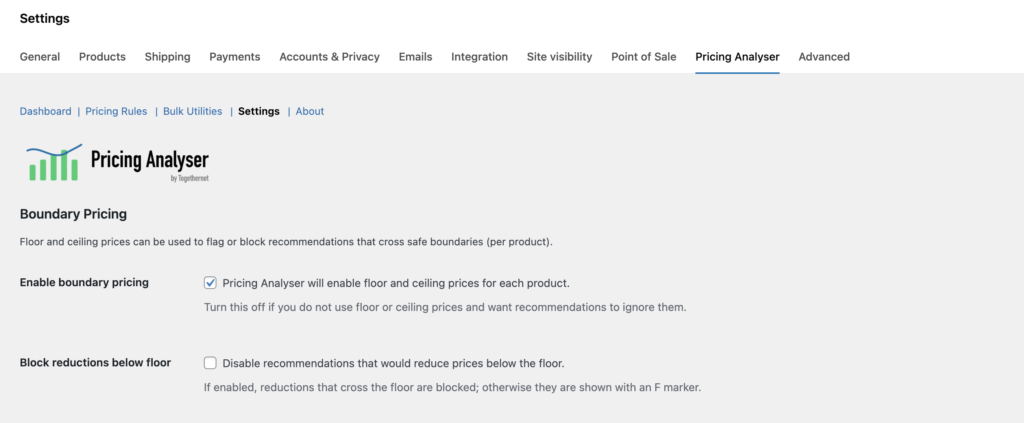
The Pricing Analyser settings control how the plugin behaves across the store. This is where you configure pricing boundaries, rounding, data windows, interest filtering and the daily briefing email.
Most merchants only need to adjust these settings occasionally, but they have an important effect on how recommendations are generated and how pricing data is interpreted.
Where to find the settings
Go to WooCommerce → Settings → Pricing Analyser.
This opens the main settings area for the plugin.
Boundary Pricing
Boundary pricing allows you to define a safe pricing band for products using floor and ceiling prices.
When boundary pricing is enabled, Pricing Analyser can use the floor and ceiling values stored against individual products to assess whether a recommendation would move a price outside the acceptable range.
This helps merchants:
- protect margin by avoiding reductions that go too low
- avoid excessive price rises
- keep automated recommendations within a commercially acceptable range
If you do not use floor or ceiling pricing, boundary pricing can be turned off.
Floor and ceiling enforcement
Pricing Analyser can take floor and ceiling checks into account when reviewing recommendations.
If a recommendation would move a price beyond the relevant boundary, the recommendation is shown as inactive rather than being applied automatically. This gives the merchant visibility while still protecting against unwanted price movement.
Boundary markers (small letters F and C) are also used in the dashboard to indicate when floor or ceiling context is relevant.
Use floor prices to calculate margins
If enabled, Pricing Analyser uses a product’s floor price as a proxy for cost when calculating margin-related figures.
This allows the plugin to:
- show margin percentage on the dashboard where available
- include profit-based figures in the daily briefing
- surface winners and losers based on products with floor prices
This setting only affects products with floor prices defined.
Price Rounding
Price rounding controls how percentage-based recommendations are rounded before being shown or applied.
This helps ensure that recommended prices look commercially sensible rather than mathematically precise but visually awkward.
Depending on your configuration, Pricing Analyser can round using:
- fractional endings such as
.99 - whole-unit rounding steps
- no store-wide rounding
This behaviour is especially useful when working with percentage-based price changes at scale.
Default rounding profile
The default rounding profile determines the store-wide rounding behaviour to use unless a rule specifies otherwise.
This gives you a consistent pricing style across recommendations while still allowing exceptions where needed.
Fractional rounding settings
If you use fractional rounding, the settings allow you to choose the preferred price ending and the rounding mode to use.
This is useful if your store uses a particular visual pricing style, such as prices ending in .99 or .95.
Whole-unit rounding settings
If you use whole-unit rounding, you can configure:
- the step size
- the rounding mode
This is useful for stores where neat whole-number or stepped pricing is preferred.
Sales and Interest history window
This setting determines whether Pricing Analyser works with a 30-day or 60-day history window for relevant signals and charts.
This affects areas such as:
- Sales (30/60d)
- Interest totals
- the baseline available for trending
- the amount of chart history shown in dashboard sparklines and modal charts
A 30-day window is more responsive. A 60-day window gives a broader baseline.
Respect sale prices
If enabled, Pricing Analyser will not generate normal price-change recommendations for products that are already on sale.
This is useful if you want to keep sale pricing separate from normal price optimisation decisions.
If disabled, Pricing Analyser can continue to analyse products even if they are currently on sale.
Interest filtering
Pricing Analyser can filter known bot traffic from interest data.
This helps keep product view activity more meaningful by reducing noise from traffic that is unlikely to represent genuine purchase intent.
If enabled, known bot user-agent fragments are excluded from interest tracking where possible.
Bot user-agent fragments
This setting allows you to define the user-agent fragments used when filtering bot traffic from interest data.
The default list can be adjusted if your store has specific traffic patterns or filtering needs.
Daily Briefing Email
The daily briefing settings control the plugin’s overnight summary email.
Here you can configure:
- whether the briefing is enabled
- recipient email addresses
- the delivery time
- the generation time
- categories of interest, if you want the briefing to focus on a subset of the catalogue
The briefing is intended to keep merchants informed of notable store activity and pricing opportunities without having to open the dashboard first thing every day.
Generation time and delivery time
The briefing is generated first, then delivered later at the configured time.
This separation allows Pricing Analyser to prepare the data overnight and send the finished briefing at the preferred time in the morning.
Pricing Analyser also ensures that generation and delivery times stay in a sensible order.
Send test briefing now
The settings area includes a test action so that you can send a briefing immediately to the configured recipients.
This is useful when:
- checking email delivery
- reviewing the current briefing layout
- confirming that recipients are set correctly
Rules export and import
The settings area also includes rule portability tools.
These allow you to:
- export your existing rules as JSON
- import rules into another store
- replace or merge rule sets depending on the import mode
This is useful for backups, migrations and rule-sharing between stores.
Activity log
Pricing Analyser keeps a log of rule-based and bulk actions. The settings page provides tools to export this log as CSV or clear it when needed.
This can be useful for reviewing past actions or keeping an operational record of pricing changes.
Uninstallation setting
The settings page includes an option to remove Pricing Analyser data on uninstall.
This is intended for merchants who want a full cleanup when permanently removing the plugin.
Deactivation does not remove Pricing Analyser data.
Best practice
For most stores, a good starting setup is:
- enable boundary pricing if margin protection matters
- enable margin calculation if floor prices are used consistently
- choose a simple store-wide rounding style
- start with a 30-day history window unless a longer baseline is needed
- enable interest filtering
- turn on the daily briefing once rules are in place
Next step
Next, see the Bulk Utilities guide to learn how Pricing Analyser can help you make larger changes efficiently across the catalogue.