
Product Edit Screen
Pricing Analyser adds its own panel to the WooCommerce product editing interface. This gives you access to product-level pricing information without leaving the product page.
The panel is designed to support product-specific review and setup. It brings together price history, sales and interest charts, boundary settings and quick links into the wider Pricing Analyser workflow.
Where to find it
Within the product data area, you will see a Pricing Analyser section. This is where Pricing Analyser adds its own product-level controls and charts.
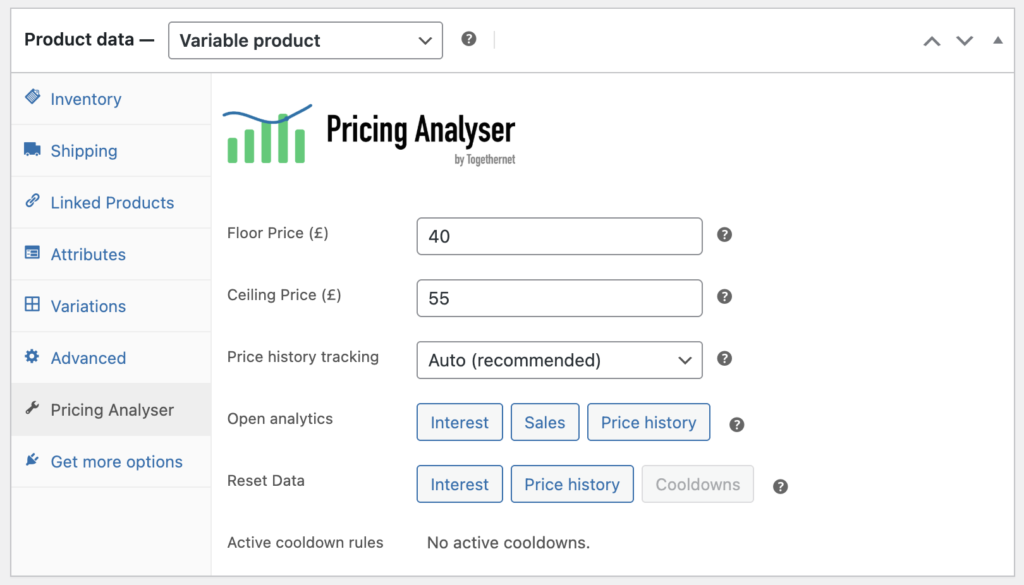
What the Pricing Analyser panel shows
The panel gives you access to:
- floor price
- ceiling price
- price history tracking mode (variable products only)
- quick links into the Pricing Analyser analytics views
- product-specific reset options for Pricing Analyser data
This allows you to review a product’s pricing context directly while editing it.
Floor and ceiling prices
If boundary pricing is enabled, the panel allows you to set:
- a floor price
- a ceiling price.
These values define the price range you consider commercially acceptable for that product.
They can be used to:
- protect margin
- prevent excessive price reductions
- limit aggressive price increases
- support more controlled recommendation behaviour.
If you use floor prices as a proxy for product cost, Pricing Analyser can also use them in margin calculations.
Price History Tracking
For variable products, this setting controls how Pricing Analyser records and displays price history. In practical terms, it determines whether the product is treated as having one representative price history or whether variation histories are tracked individually.
If the variations are usually priced the same, a single representative history will often be the simplest option. If variations differ meaningfully in price and need to be analysed separately, variation-level tracking is usually more useful. For example, if you sell photo prints then you may choose to sell them framed or unframed, and you’d definitely want to charge different amounts for these variations. So you’d select ‘Track every variation’ in Price History Tracking. On the other hand, if you sell items that vary only by colour, you may decide to price them all the same. You might therefore select ‘Track one (canonical) variation. Finally, if you found you had a lot of items left of one colour, then you might want to drop the price of that colour to clear stock. By selecting the Auto option, then as soon as you create different prices among the variations, Price Analyser will track all of the variations separately.
Open Analytics buttons
The panel includes quick links that open the relevant Pricing Analyser analytics views.
These are useful when you want to move from product editing into a wider review of:
- sales
- price history
- interest.
This makes it easier to inspect the same product within the main Pricing Analyser dashboard and charts.
Reset Data actions
The panel also includes reset tools for Pricing Analyser-specific data.
These actions operate on Pricing Analyser data only. They do not remove normal WooCommerce product records or order data.
Sales history cannot be reset as it is taken from WooCommerce product records.
Cooldowns are rules that have been recently applied to the product and are within the cooldown period assigned to the rule, so cannot yet be reapplied. Any active cooldowns are listed. Cooldowns will be removed on expiry but you can remove them here if you want to do so earlier.
Supported product types
Pricing Analyser is designed primarily for:
- simple products
- variable products.
Unsupported product types are excluded from the Pricing Analyser workflow where recommendations would not make sense.
For variable products, Pricing Analyser can work at variation level where appropriate.
How this page fits into the workflow
The product edit screen is best used when:
- reviewing one product in detail
- setting or adjusting floor and ceiling prices
- checking recent price history before changing a price
- reviewing and resetting coooldowns if needed.
For broader pricing review and action across the catalogue, the main Pricing Analyser dashboard is the primary workspace.
Next step
Next, see the Dashboard guide for a full walkthrough of the main Pricing Analyser review screen.